Brief
Apple adds automatic Mail categories to iPhone with iOS 18.2
iOS 18.2 sorts incoming mail into four categories and lets users reassign senders, though Primary messages cannot be moved.
By Felo News Desk · Published
Apple's iPhone mail app now automatically sorts messages into four categories—Primary, Transactions, Updates and Promotions—after the iOS 18.2 update released in 2025, CNET reported.
What happened
The new feature, called Mail Categories, groups emails based on content: receipts and delivery details go to Transactions, newsletters and social updates to Updates, and special offers to Promotions. Primary is described by Apple as “messages that matter most,” but the exact criteria are broader, often including personal correspondence and customer‑service messages.
What the reports add
CNET notes that the categories are enabled by default, mirroring similar sorting in services like Gmail. The outlet also explains that while users can manually move future messages from a sender to a different category, messages placed in Primary cannot be re‑categorized.
What was said
“The Mail app automatically sorts your email messages into categories to help you find and manage messages more quickly,” Apple wrote online, CNET said.
How it came about
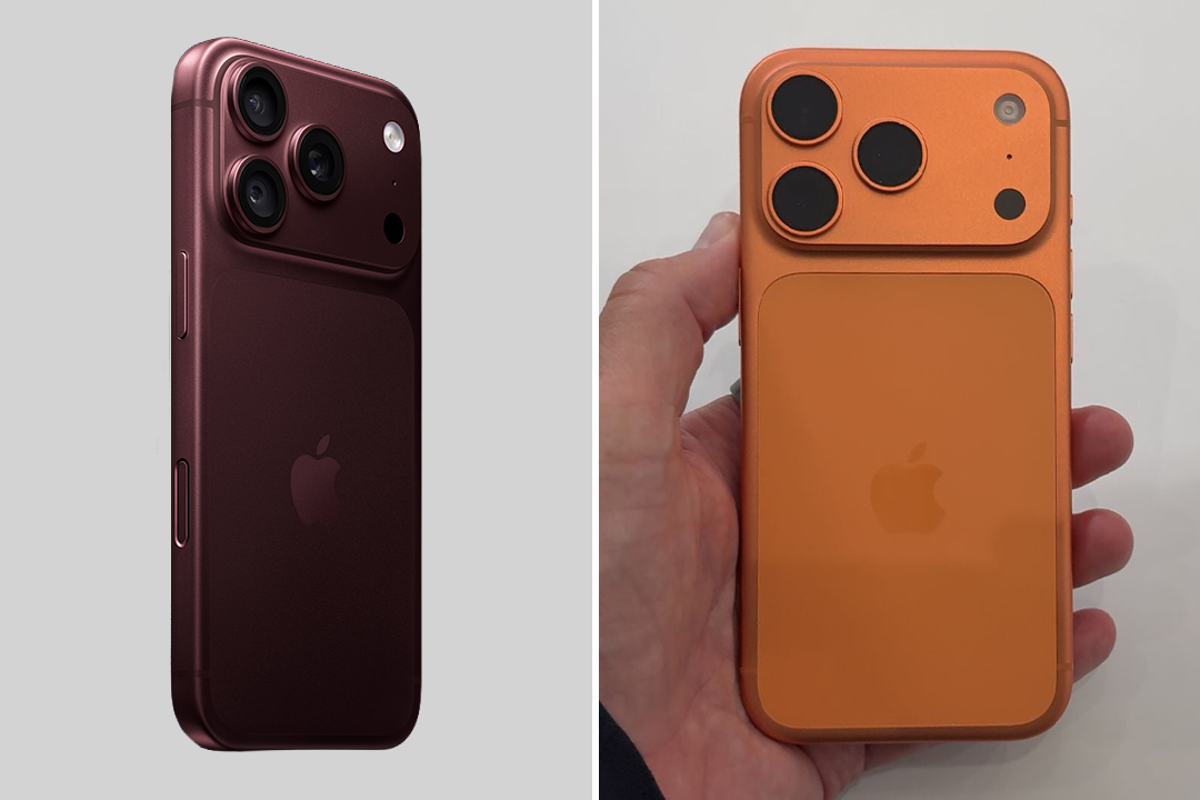
Apple introduced Mail Categories alongside iOS 18.2, the same update that brought other refinements to the iPhone 18 Pro line, which Felo previously covered in its September reviews of the iPhone 18 Pro versus the 17 Pro. Those articles highlighted the incremental hardware upgrades of the new iPhone model, while the iOS update focused on software‑level improvements such as this mail sorting feature.
Key facts
- iOS 18.2 adds automatic Mail categories: Primary, Transactions, Updates, Promotions. (cnet.com)
- Categories are on by default and can be adjusted for future messages, except for Primary. (cnet.com)
- Apple describes Primary as “messages that matter most.” (cnet.com)
Sources
- [1] cnet.com — originally reported as “Everything You Should Know About Mail Categories on Your iPhone”